
D365 Receive unannounced sales returns
In Microsoft Dynamics 365 Supply Chain Management, sales returns are typically managed through a return material authorization (RMA) order, which serves as the primary document guiding the process from initiation to warehouse receiving. This approach works well when the reason for the return is known and communicated in advance. In real-world operations, customers may return goods without prior notification, creating challenges for warehouse teams.
Microsoft Dynamics 365 Supply Chain Management now offers a streamlined way to handle unexpected returns. While the standard process relies on RMA orders to manage returns, version 10.0.39 introduces the “Receive unannounced sales returns” feature for scenarios where customers send goods back without prior notice.
Through the Warehouse Management mobile app, without creating an RMA, workers can process blind returns or use auto-generated return details for faster identification.
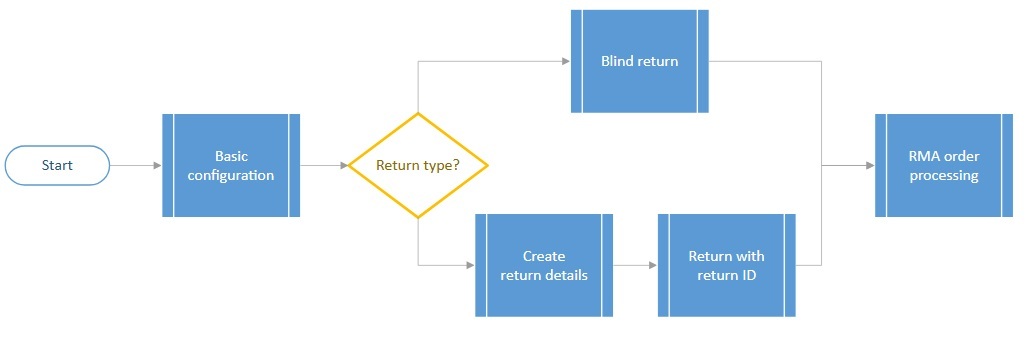
The feature supports two workflows:
- blind returns, where only basic details such as customer, item, quantity, and disposition are recorded,
- returns with details, which use automatically generated return data like a return ID and original order references.
By reducing administrative effort and improving flexibility, this functionality streamlines reverse logistics and ensures compliance with return policies. Optional integration with Small Parcel Shipping allows printing prepaid return labels with barcodes for faster identification, further enhancing efficiency.
System Requirements
To activate and utilize the functionalities outlined in this article, the following prerequisites must be met:
- Function “Unannounced sales returns” is supported starting with Microsoft Dynamics 365 Supply Chain Management, version 10.0.39 or higher.
- Function “Small parcel shipping (SPS) Integration” is supported starting with Microsoft Dynamics 365 Supply Chain Management, version 10.0.39 or higher.
- Function “Print license labels from a mobile device” is supported starting with Microsoft Dynamics 365 Supply Chain Management, version 10.0.40 or higher.
- Warehouse Management app should be configured and connected.
Benefits
- Immediate Receiving Without RMA
Businesses can register and receive returned goods instantly without creating a return material authorization (RMA) or return order beforehand. This eliminates administrative delays and accelerates the intake process, ensuring that returned items are processed as soon as they arrive at the warehouse.
- Enhanced Flexibility for Unexpected Returns
The feature is designed for scenarios where customers send back products without prior notice or reference to an original order. This flexibility allows companies to handle unplanned returns efficiently, avoiding bottlenecks and maintaining smooth warehouse operations even when returns are unpredictable.
- Streamlined Mobile-Driven Workflow
Using the Warehouse Management mobile app, workers can complete the entire receiving process directly on the shop floor. This reduces dependency on back-office systems, minimizes manual data entry, and speeds up the workflow by enabling real-time capture of essential details such as customer account, item number, quantity, and disposition codes.
- Simplified Registration Process
The process for registering unannounced returns is intuitive and user-friendly. Workers can quickly identify the return type (blind or with details), scan or enter necessary information, and confirm storage locations. This simplicity reduces training requirements and improves accuracy during receiving.
- Disposition Control for Follow-Up Actions
The ability to assign disposition codes during receiving ensures that returned items are routed correctly for further processing—whether restocking, scrapping, or crediting. This structured approach helps maintain inventory integrity and supports compliance with company return policies.
- Integration with Small Parcel Shipping (Optional)
When combined with Small Parcel Shipping (SPS), businesses can generate prepaid return labels with barcodes during outbound shipments. These labels simplify identification during receiving, reduce errors, and accelerate the matching process for returns with details.
- Improved Operational Efficiency and Compliance
By reducing manual steps, eliminating unnecessary paperwork, and providing audit trails through system-generated return details, the feature enhances overall efficiency. It also ensures compliance with internal return handling policies and external regulatory requirements.
Return item receiving options for unannounced returns
The Warehouse Management mobile app provides two workflows for handling unannounced returns within the Return item receiving process: Blind return and Return details.
Blind return
- No prior return details or original sales order are required during receiving.
- WHS key information: customer account, item, quantity, and disposition code.
Return details
- Uses automatically generated return information created at shipment (Return ID, original order, lines, “return‑until” date).
- Worker identifies the return by entering or scanning the return ID (e.g., barcode on a return label).
Blind return
Blind returns are processed without an RMA or pre-existing return details, and no reference to the original sales order or shipment is required. During receiving, workers use the Warehouse Management mobile app to record essential data: the customer account or source system, item number and quantity, and the license plate ID for storage. If enabled, a disposition code can be selected to determine how the returned goods should be handled; otherwise, this step is completed later in Supply Chain Management when finalizing the mixed license plate.
Return details
The return details process applies when a return details record exists in advance, typically created during shipment. This record includes information such as the return ID; original sales order and return lines. During receiving, warehouse workers use the mobile app to identify the return by scanning or entering the return ID. The app then retrieves the associated details, allowing workers to confirm items, quantities, and storage locations. If configured, disposition codes can be selected to define the next steps for returned products. This approach ensures accurate matching the original transaction and supports compliance with return policies.
Setup Configurations
Warehouse Management parameters
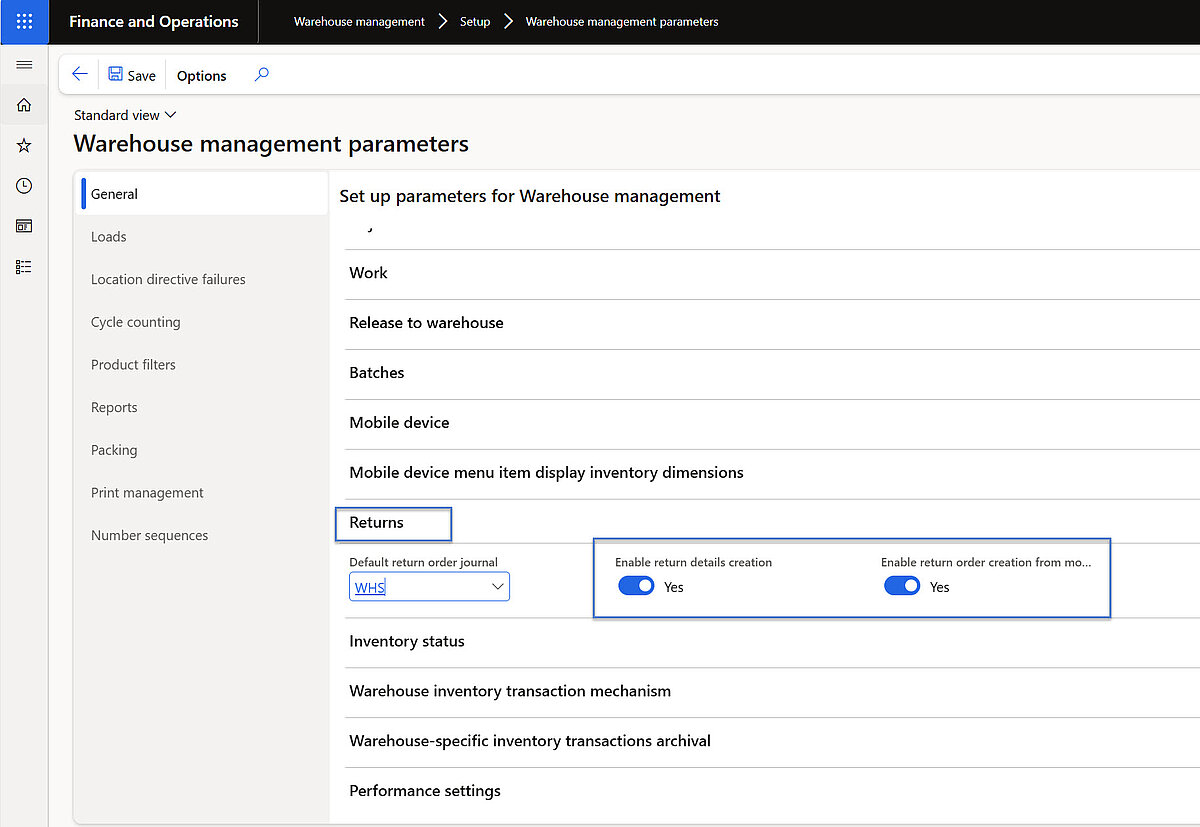
Ensure the following settings are enabled in Warehouse Management parameters:
- Register General → Section Returns:
- „Enable return details creation“ = Yes
- „Enable return order creation from mobile device” = Yes
“Enable return details creation” – This setting allows the system to generate return details when containers are closed and shipments are confirmed.
“Enable return order creation from mobile device”- This option enables the creation of return orders through a mobile device flow using a mixed license plate to receive planned lines.
Warehouse management > Setup > Warehouse management parameters
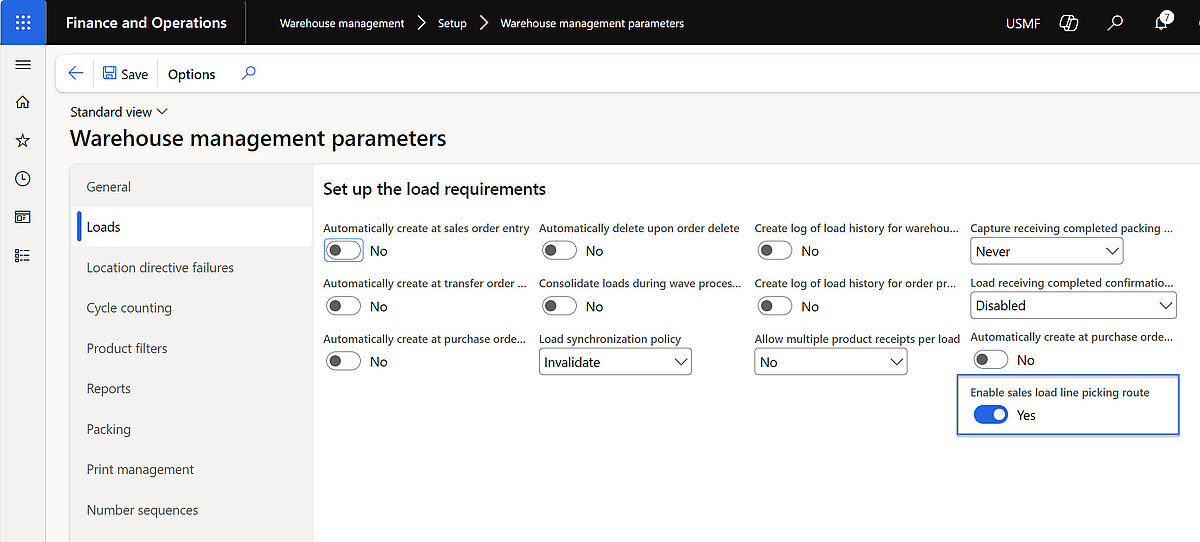
- Register Loads:
“Enable Sales load line picking route” = Yes
“Enable Sales load line picking route” - This setting links load lines to sales line inventory transactions at the shipment level. It uses the Load line inventory pick number sequence to create this connection after the work is completed and the containers are sealed.
- Register Number sequences:
- verify that following number sequence codes are configured: Return ID and Load line inventory pick
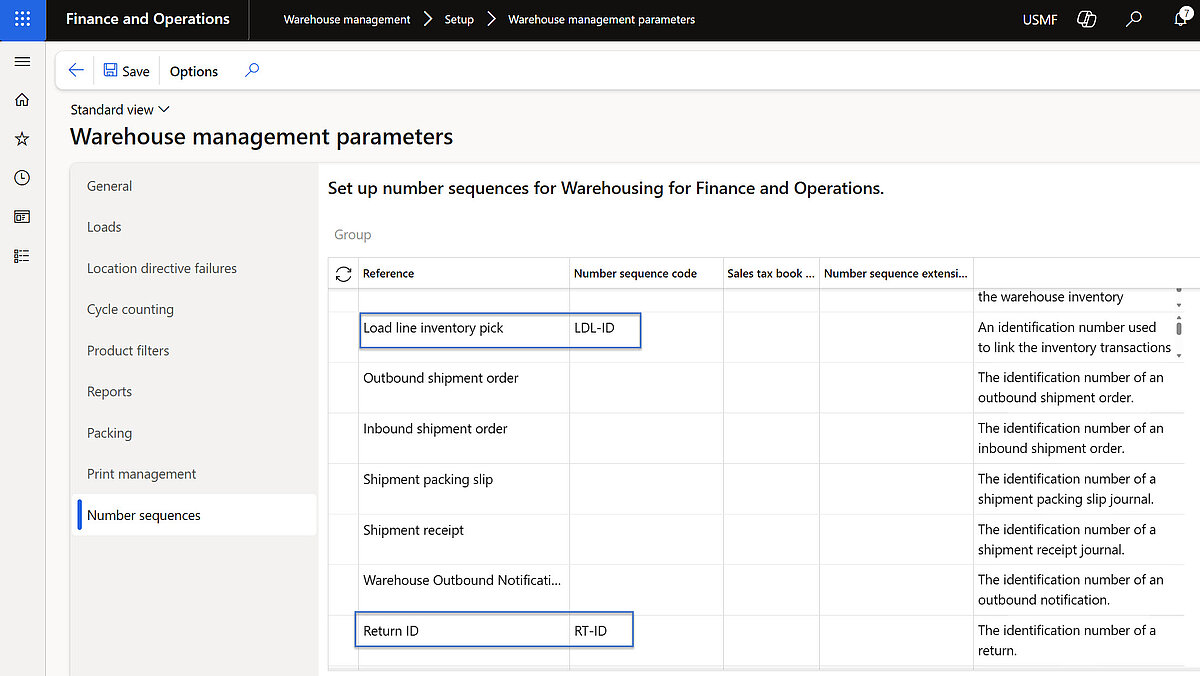
2. Dispositions codes
Ensure the following configurations are in place:
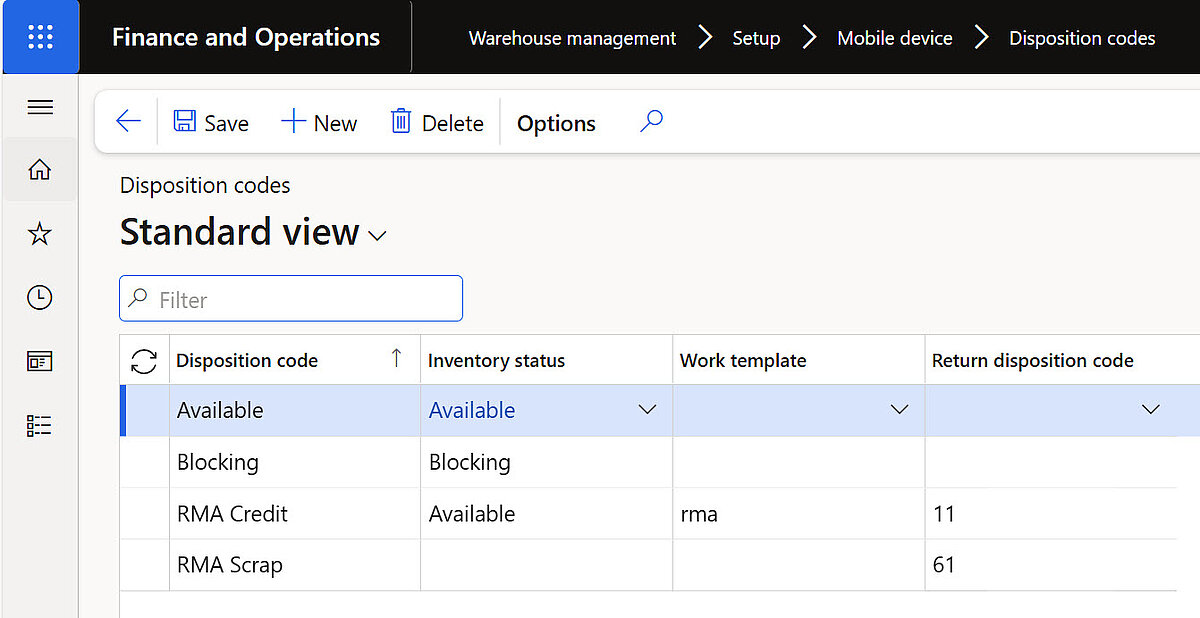
- A disposition code in Warehouse management Module must be configured and available.
- This code determines the inventory status, the applicable work template, and the return disposition.
- When a warehouse worker registers a return, this setup defines, for example, which inventory status will be applied to the returned items.
Warehouse management > Setup > Mobile device > Disposition codes
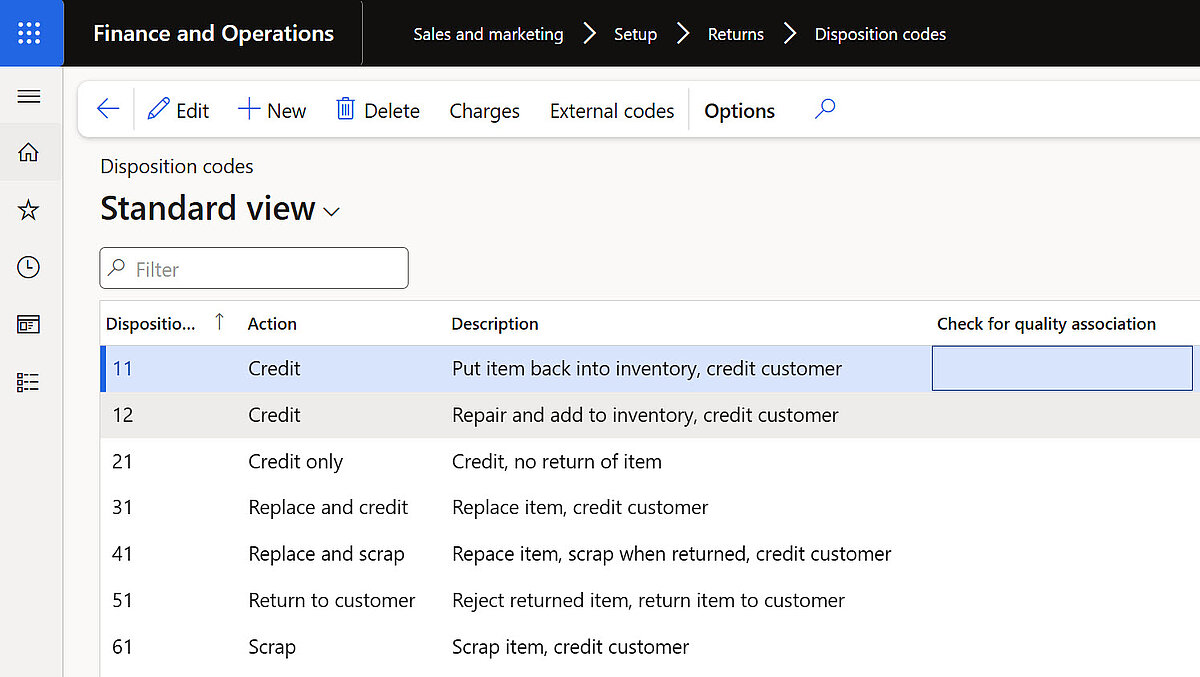
- A return disposition code in Sales and Marketing Module for sales returns is required and should be properly set up.
- This configuration defines the actions that follow a return is registered, such as whether the customer will receive a credit or other processing steps.
Sales and Marketing > Setup > Returns > Disposition codes
3. Return policy
The following configurations must be implemented:
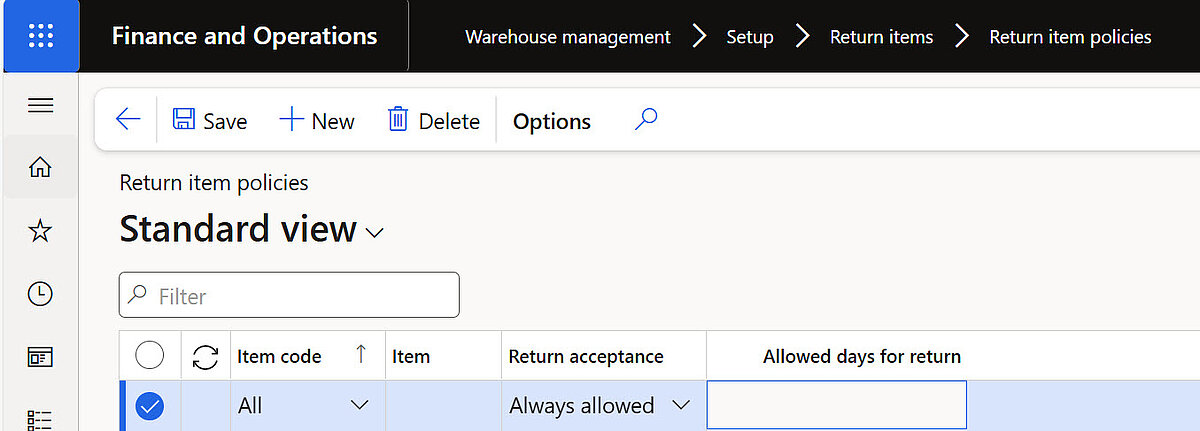
- A return policy must be set up to define the rules for accepting returned items.
- This policy allows you to specify whether returns are permitted for all items, only certain item groups, or specific products.
- It also enables configuration of the allowed return period, such as rejecting any item returned more than 30 days after the original shipment.
Warehouse management > Setup > Return items > Return items policies
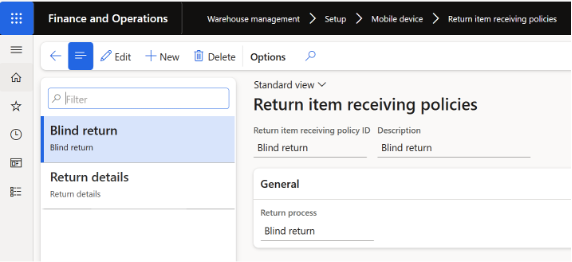
- A return item receiving policy must be defined for mobile menu items used to register returned goods.
- This policy determines which workflow is applied during receiving—either the blind return process or the return details process.
- It should be prepared before menu item will be added to the mobile device.
Warehouse management > Setup > Mobile device > Return items receiving policies
4. Mobile device menu items
Warehouse management > Setup > Mobile device > Mobile device menu items
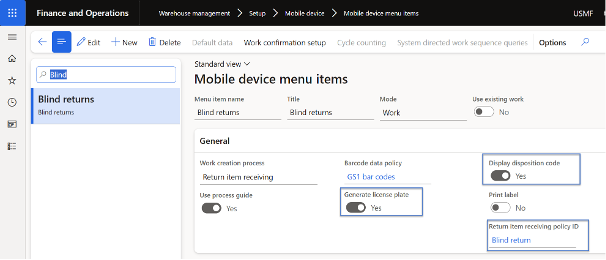
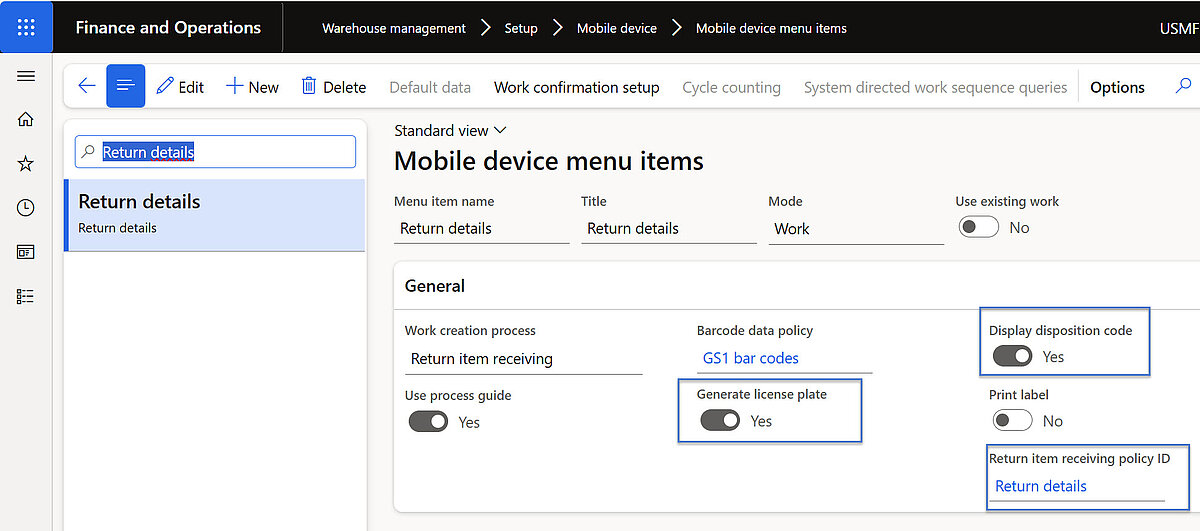
To manage return registration processes, the following mobile device menu items should be configured:
- Blind return – for processing returns without prior details
- Return details – for handling returns with detailed information
Most important points in set up here:
- „Generate license plate“ = Yes
- „Display disposition code“ = Yes
- “Return item receiving policy” = Return details or Blind return, properly
- “Work creation process” = Return item receiving
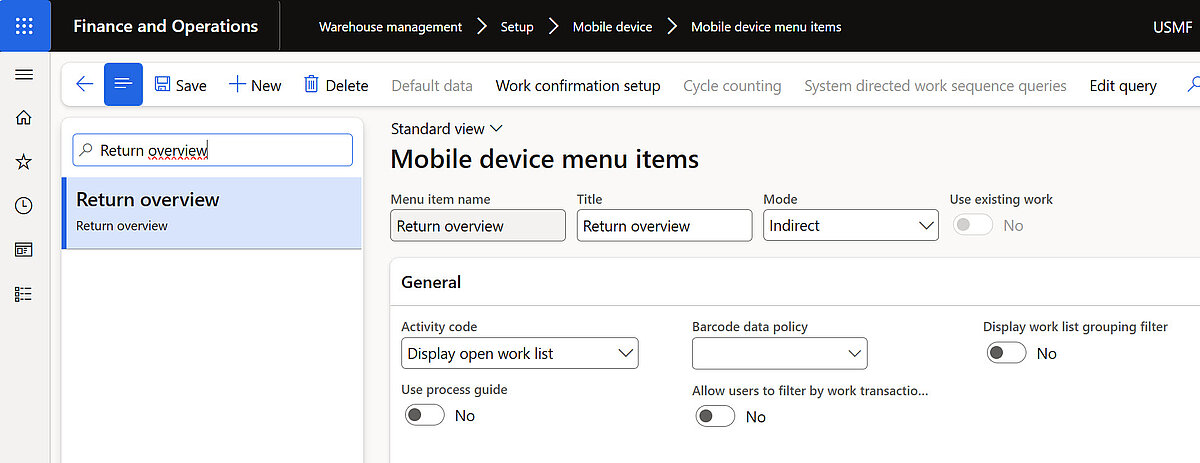
To manage return put-away processes, the following mobile device menu items must also be set up:
- Return overview for viewing return put-away work
- Return put away for executing the return put-away tasks
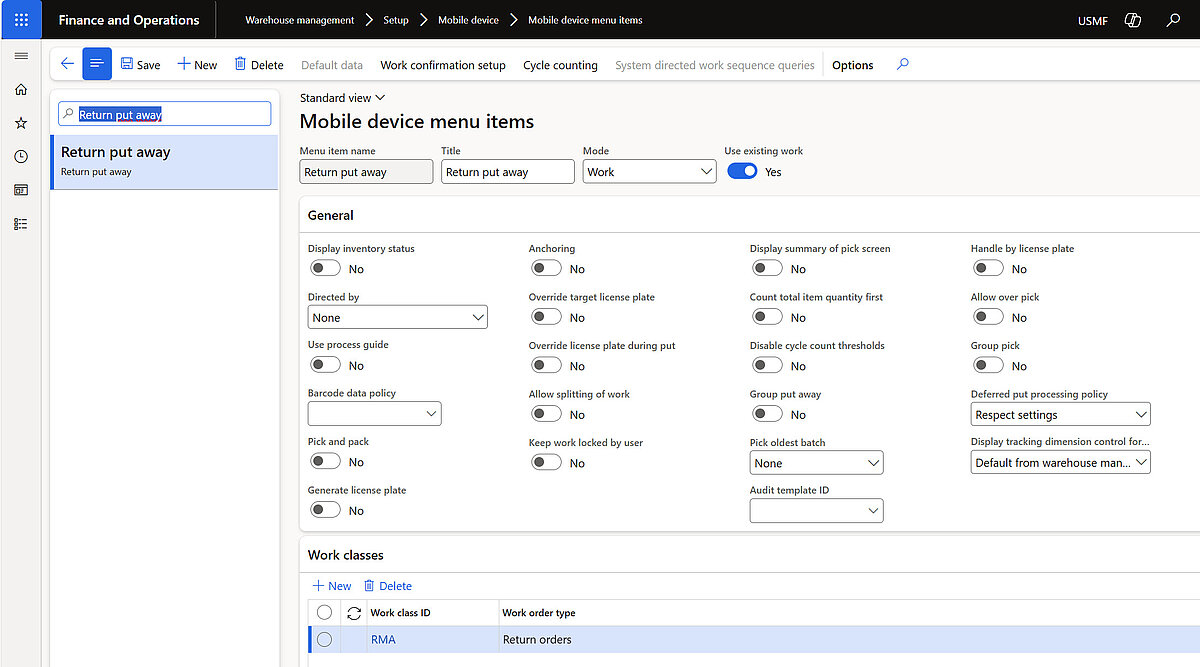
5. Mobile device menu
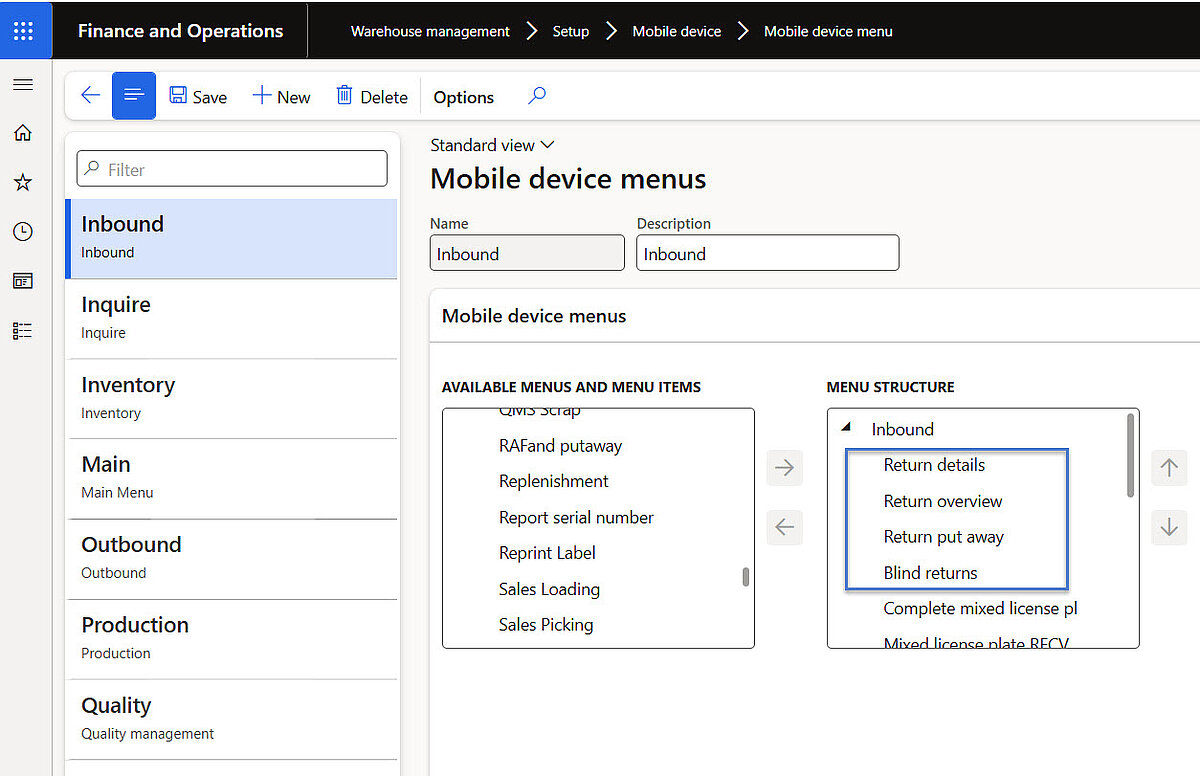
Each mobile device menu item must be linked to a designated mobile device menu. This ensures that the configured menu items are accessible to warehouse workers and properly organized within the mobile interface for efficient return processing.
Warehouse management > Setup > Mobile device > Mobile device menu
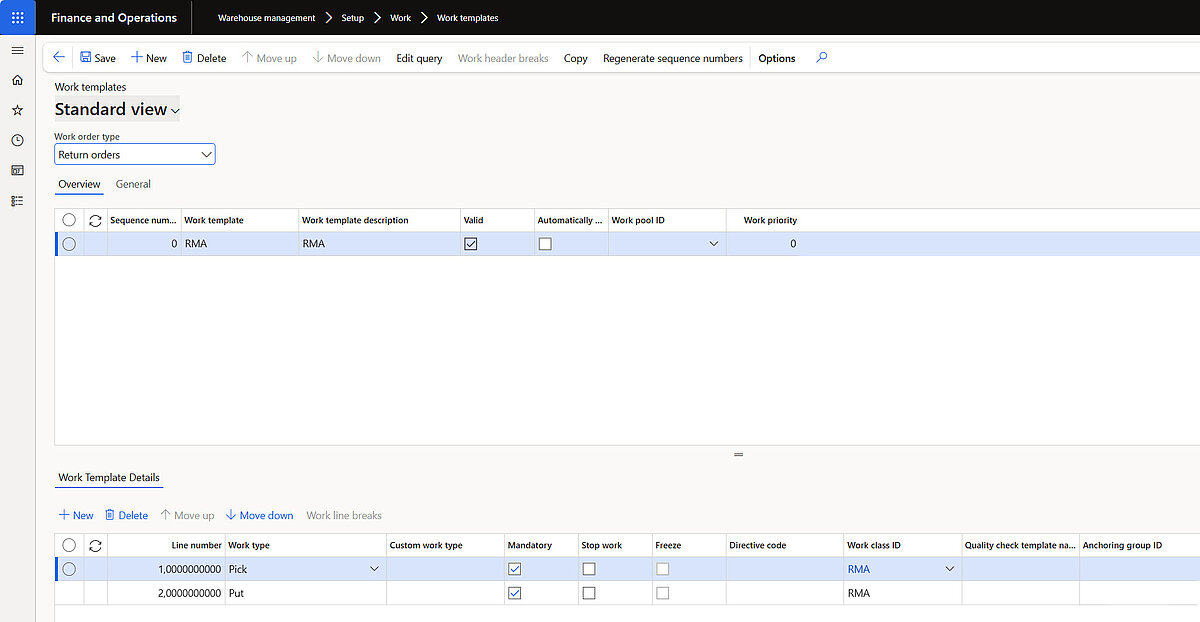
6. Work template for the return orders
A work template for return orders is required. This configuration determines the workflow applied during registration, guiding the system in creating work instructions for processing returned items efficiently.
Warehouse management > Setup > Work > Work templates
7. Location directives for return orders
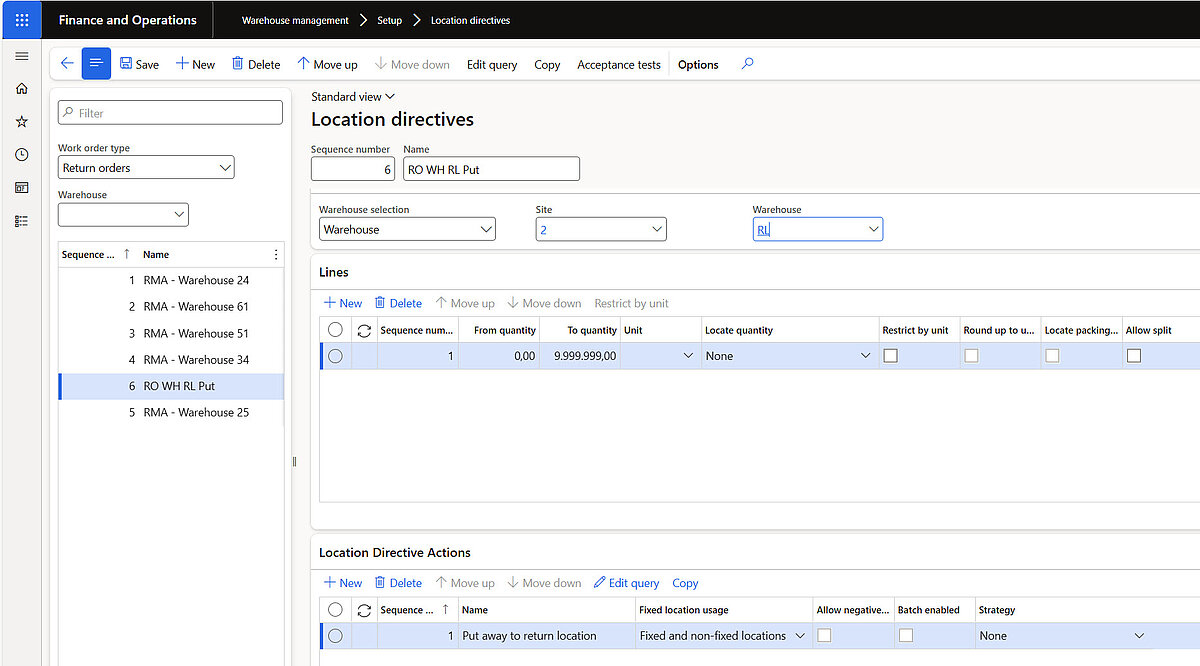
This configuration determines the put-away location for returned items, guiding the system to place goods in the correct storage area during the return process. Proper setup ensures efficient warehouse operations and compliance with inventory management rules.
Warehouse management > Setup > Location directives