
D365 Approved customer lists
D365 Approved customer lists
This enhanced functionality enables organizations to link specific products to approved customers, which is especially valuable in scenarios where goods or services are regularly sold to a defined customer base. It is essential to ensure that only authorized customers are permitted to buy designated items.
Sales teams often work with recurring customers who are preapproved based on their established business relationships. By assigning product access in advance, the sales order process becomes more streamlined, and product delivery is accelerated. Additionally, this approach ensures that items are sold exclusively to eligible customers, preventing unauthorized sales to others.
System Requirements
To activate and utilize the functionalities outlined in this article, the following prerequisites must be met:
- Deployment of Microsoft Dynamics 365 Supply Chain Management, version 10.0.44 or higher.
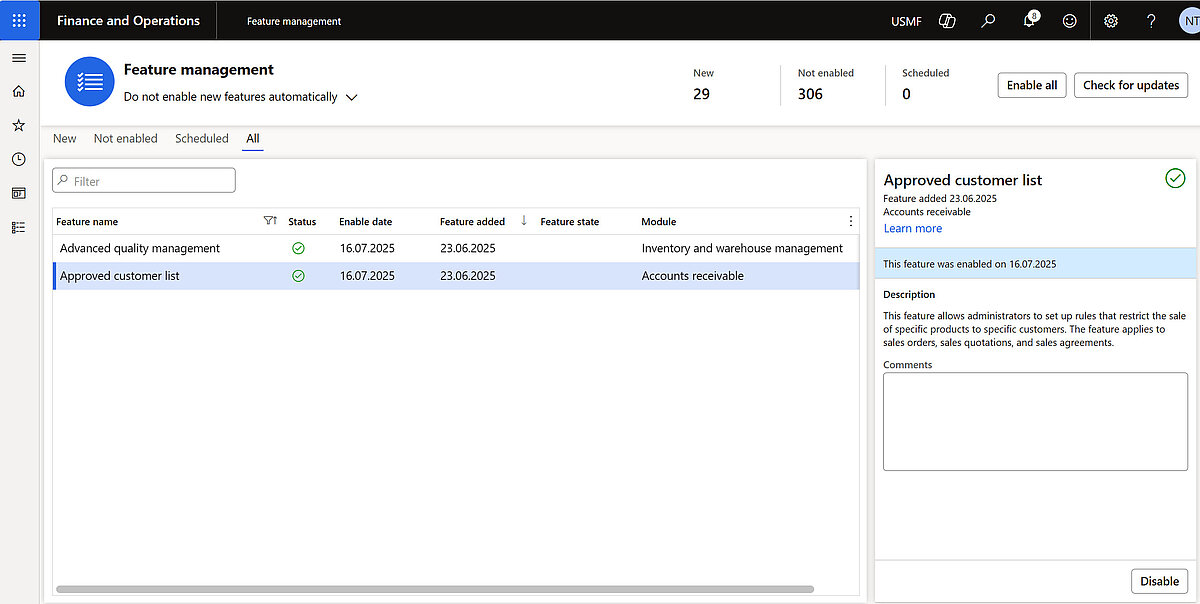
- Activation of the features titled Advanced quality management and Approved customer list within the Feature Management workspace.
Configuring Approved Customers and Items
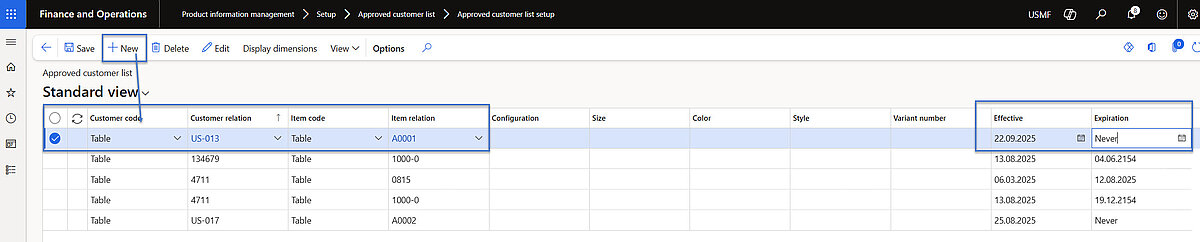
To manage recurring sales or restrict which customers can purchase specific products, use the Approved Customer List setup page to establish associations between individual customers or customer groups and specific items or item groups.
During this setup process, users define the type of relationship
- Authorize a specific customer to purchase a specific item.
- Authorize a specific customer to purchase any item within a designated item group.
- Authorize a customer group to purchase a specific item.
Authorize a customer group to purchase any item within a designated item group (commonly referred to as a group-to-group relationship).
Additionally, users configure the Approved Customer List Check Method to determine the system's response when a customer attempts to purchase an item they are not authorized to buy.
Each relationship must include defined effective and expiration dates to control its validity period.

Configuring the Approved Customer List Check Method
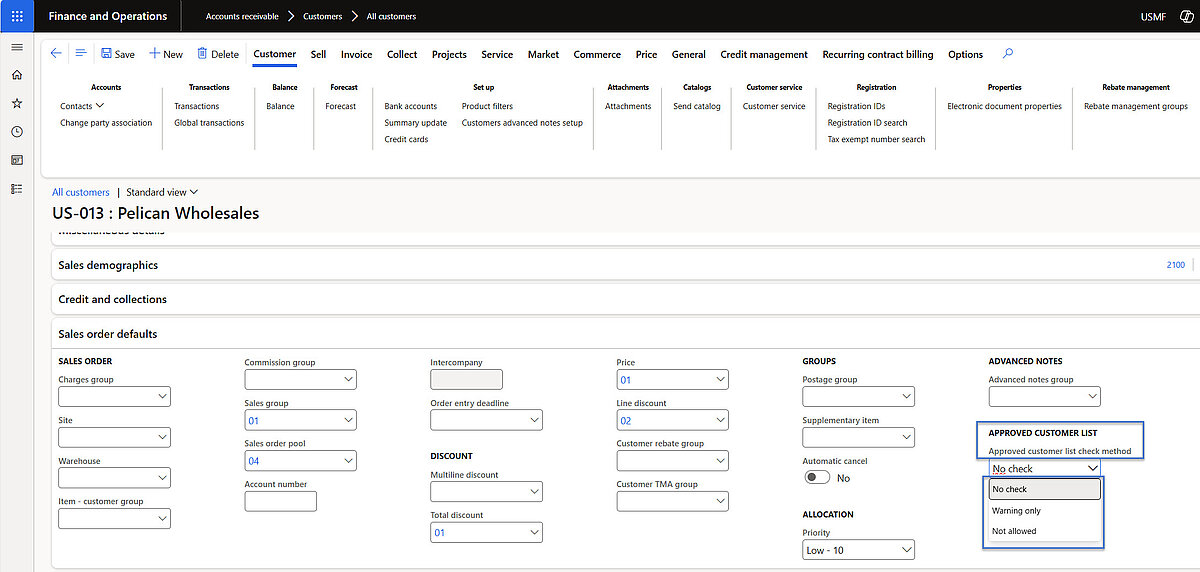
When establishing a customer–item relationship to authorize product sales, users must also define the ACL (Approved Customer List) check method at both the customer and item levels. This method validates whether a specific customer is permitted to purchase a particular item or not and ensures that the customer is properly authorized for the selected product.
Set up the ACL check method on customer level:
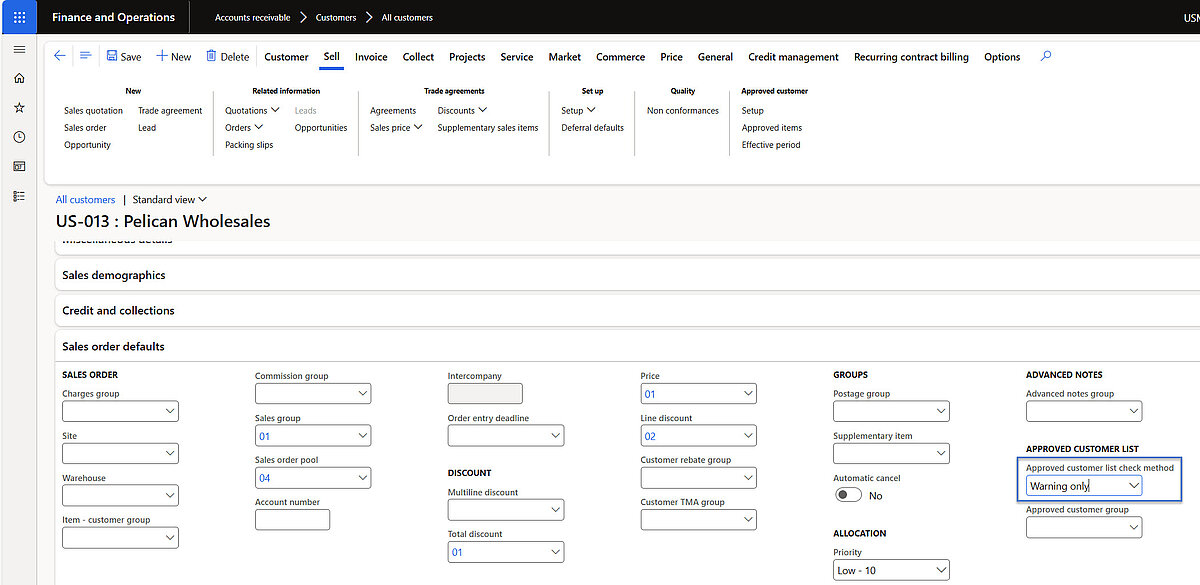
Sales and marketing >Customers > All customers > FastTab “Sales order defaults”> Field “Approved customer list check method”
Accounts receivable > Customers > All customers > FastTab “Sales order defaults”> Field “Approved customer list check method”
Set up the ACL check method on item level:
Product information management > Products > Released products > FastTab “Sell” > Field “Approved customer list check method”
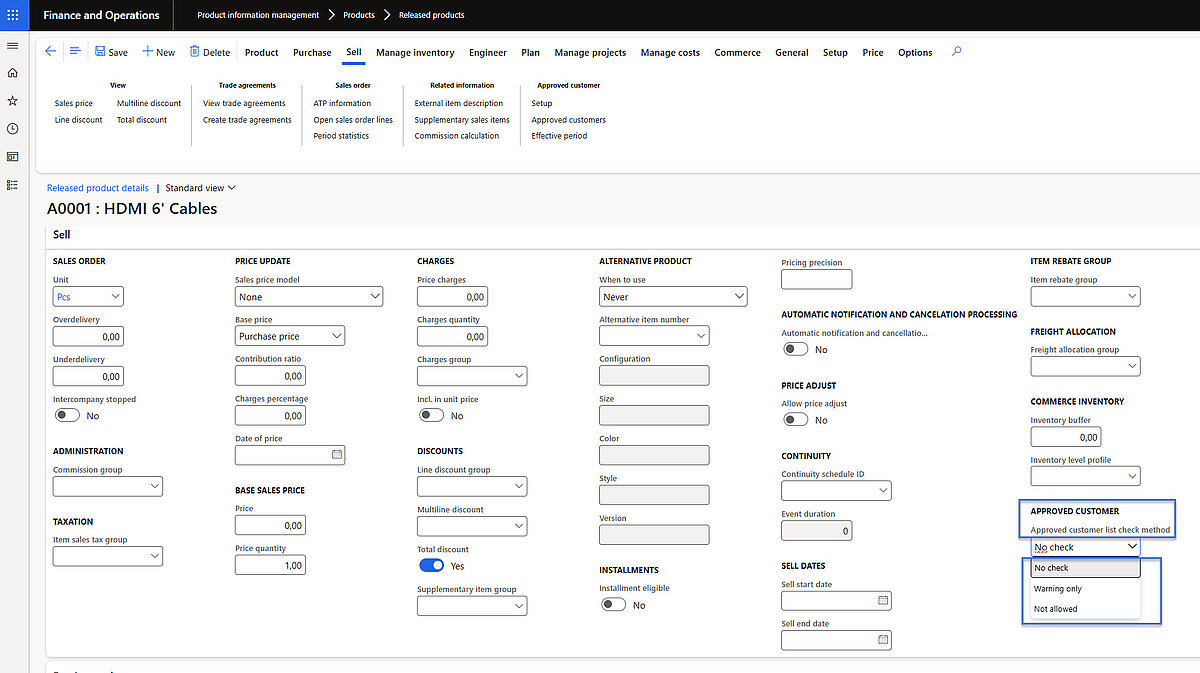
The ACL check method defines the action that is taken if Users select a customer and/or an item that isn't listed in the item's approved customer list. It also confirms that the transaction date is within the effective approval period that is specified for the customer and the item. Users can set up the ACL check method either to issue a warning or to prevent the transaction from being processed.
The ACL check method determines how the system responds when a user selects a customer or item that is not included in the item's approved customer list, and verifies that the transaction date for both the customer and the item.
The ACL check method can be applied across multiple document types, including sales agreements, sales quotations, and sales orders.
Approved Customer List
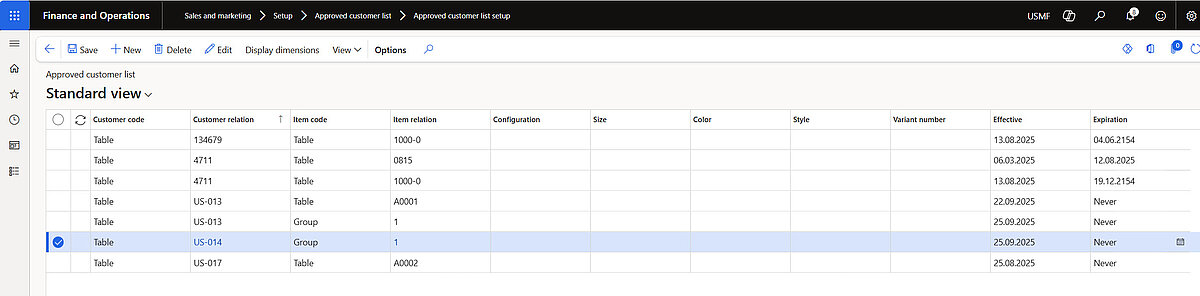
The page Approved Customer List setup allows users to establish and maintain authorization settings for individual customers or customer groups across one or more items.
Product information management > Setup > Approved customer list > Approved customer list setup
And Sales and marketing > Setup > Approved customer list > Approved customer list setup
Approved Customer groups and Approved Item groups
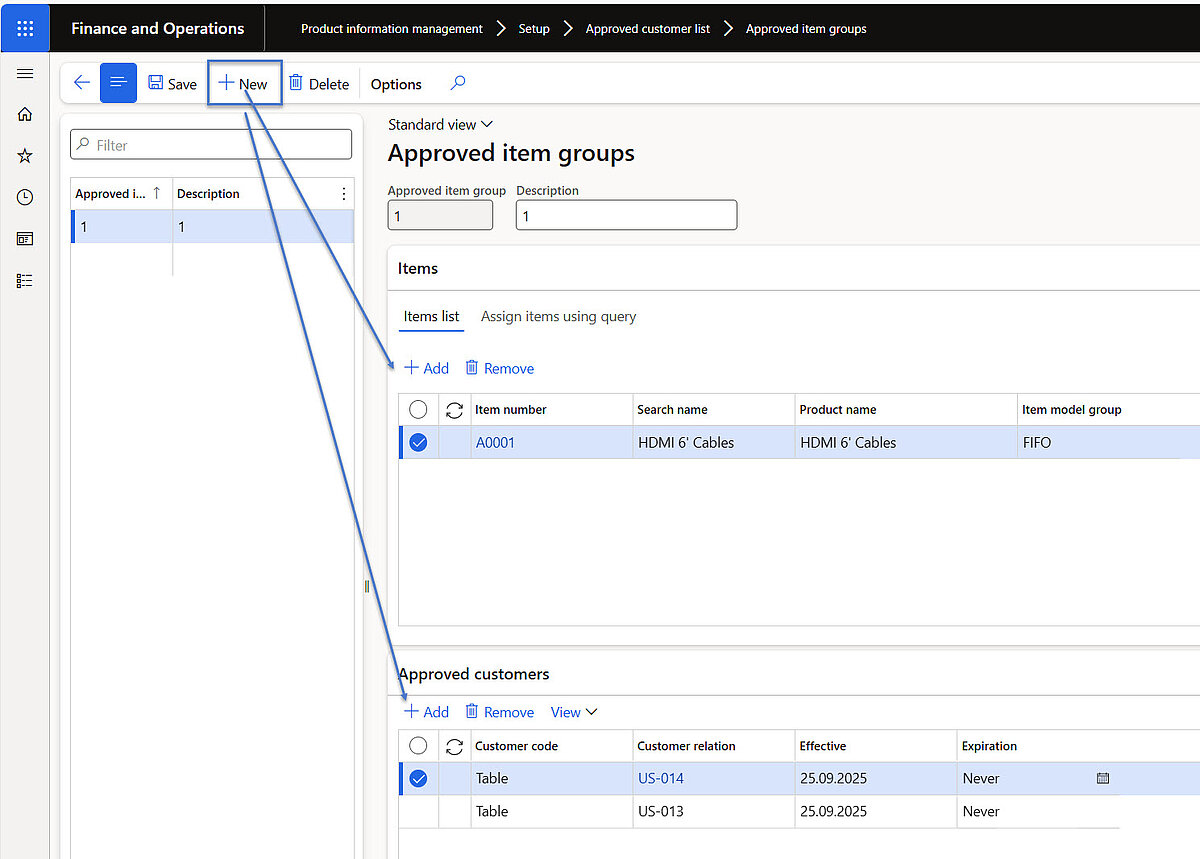
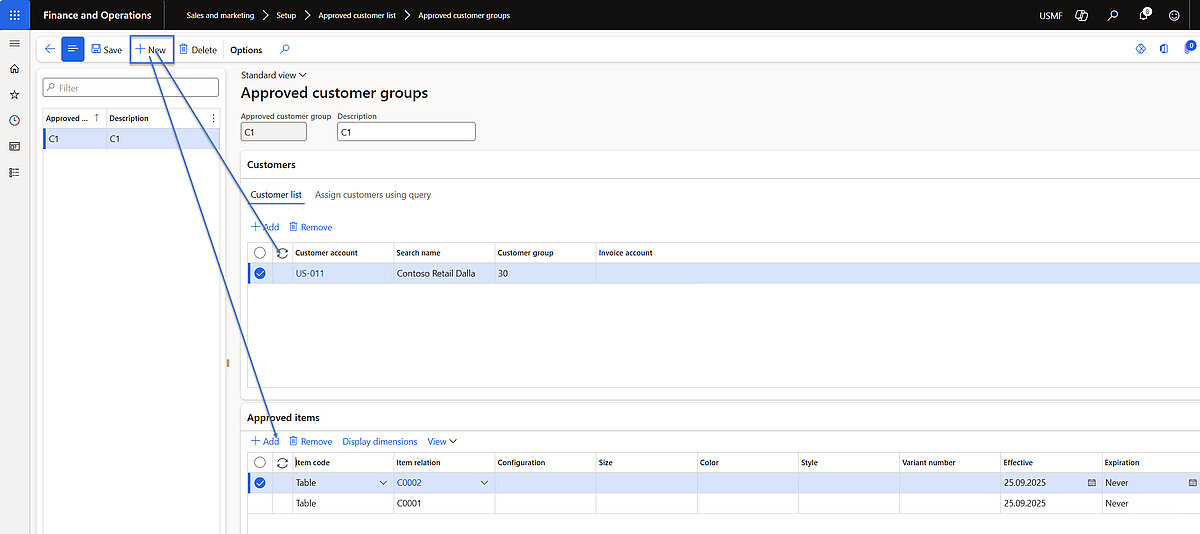
For efficient approval process, users can define groups of customers and items—especially useful when the same products are authorized for a specific customer, a customer group, or all customers. When an approved item group is linked to an approved customer group, every customer within that group is automatically authorized to purchase every item in the associated item group.
Product information management > Setup > Approved customer list > Approved item groups
And Sales and marketing > Setup > Approved customer list > Approved customer groups
Within the customer master data, users have multiple options for viewing which items are approved for a specific customer.
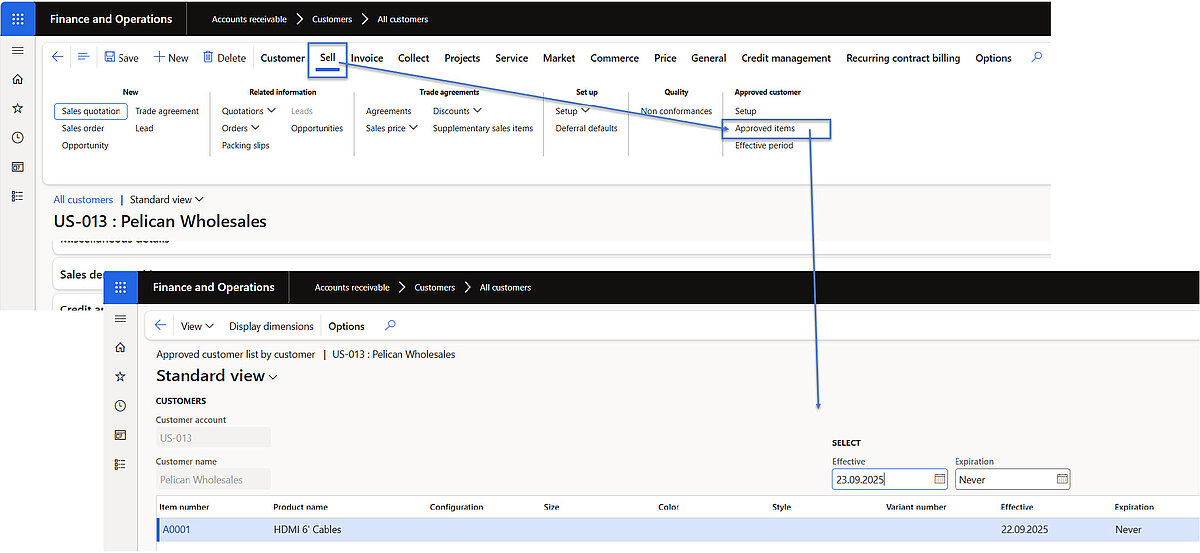
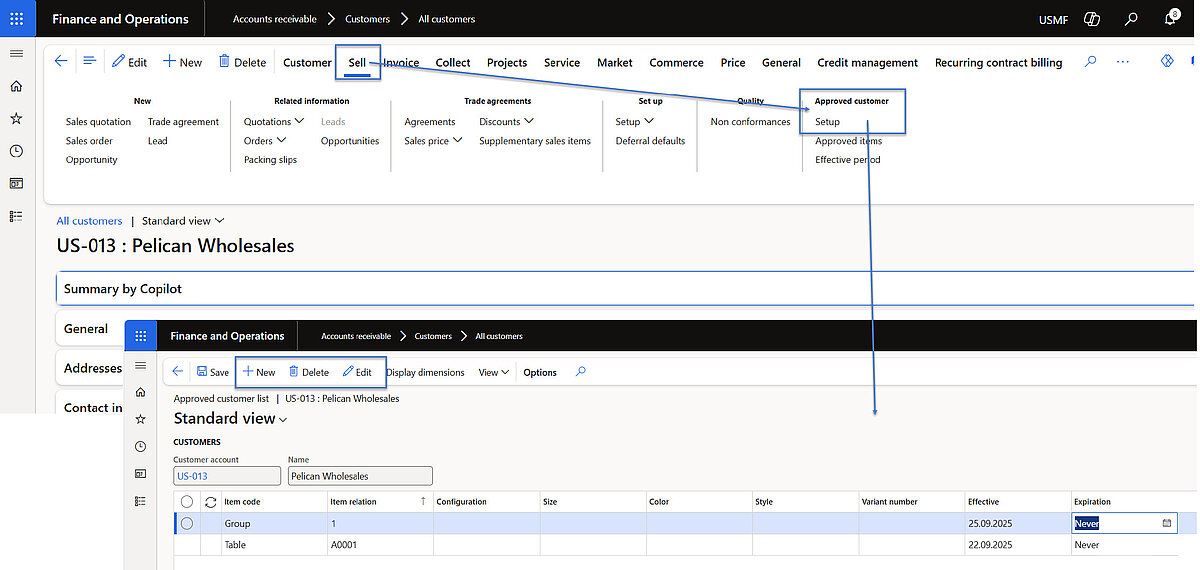
Approved items associated with each customer account can also be reviewed and modified directly from the customer record as needed.
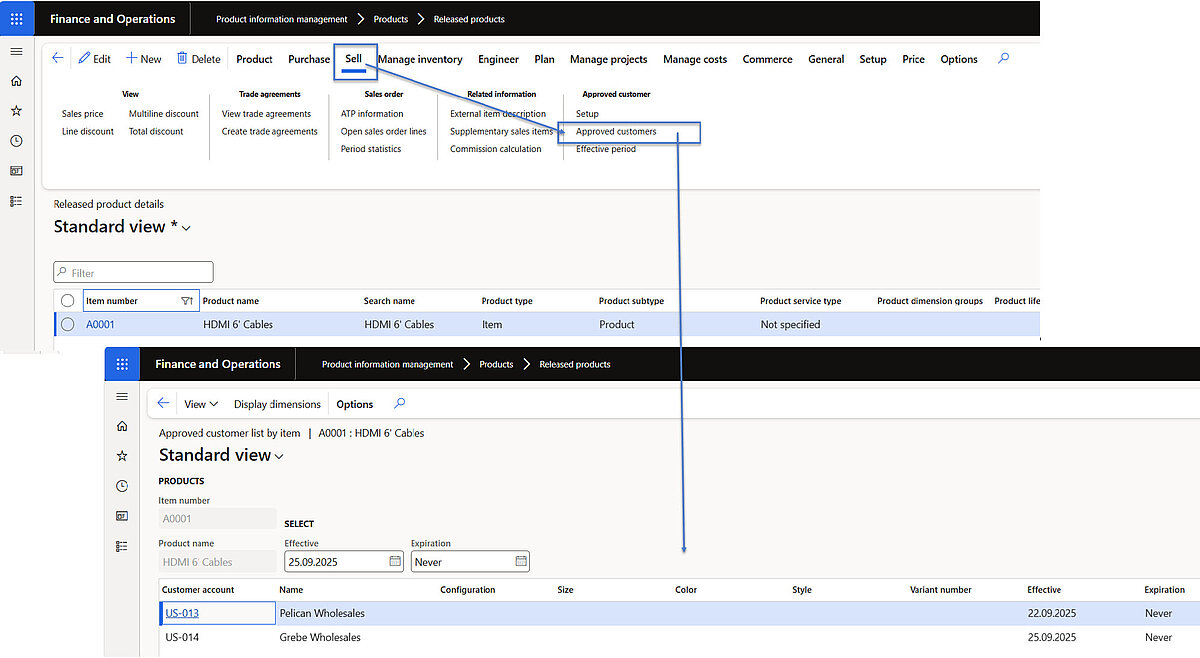
Users can view approved customers directly from the product master, with multiple options available to display approved customers.
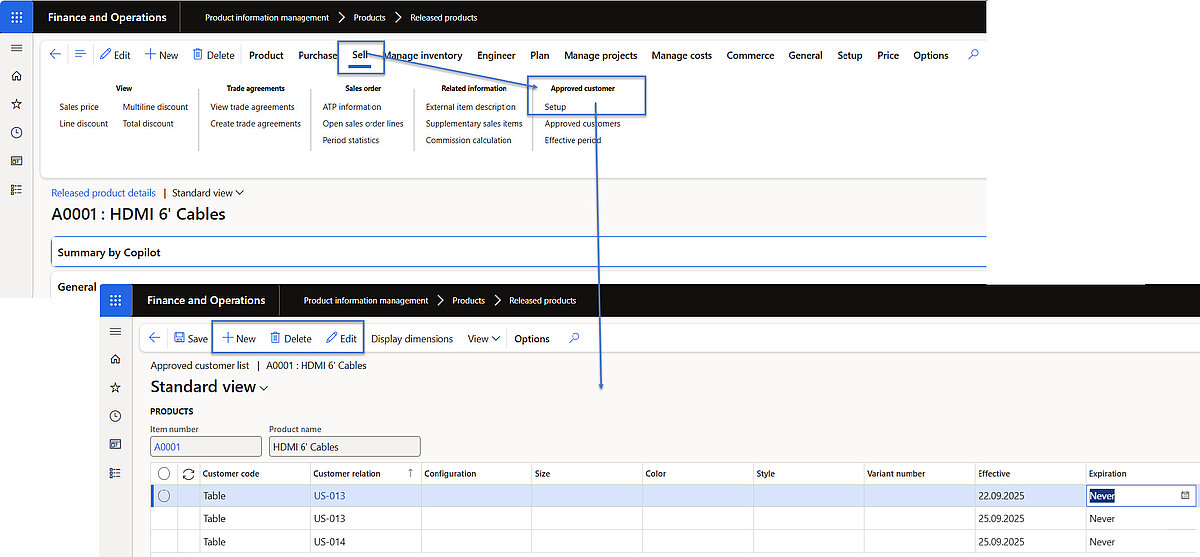
Users can manage and update the list of customers authorized to purchase specific items directly from the product master, ensuring that customer approvals remain accurate and aligned with current sales policies.
Configuring Date Validation for the Approved Customer List
When users define effective and expiration dates for an approved customer list entry, date validation is performed only if the ACL check method is set to Warning only or Not allowed. No validation occurs when the method is set to No check.
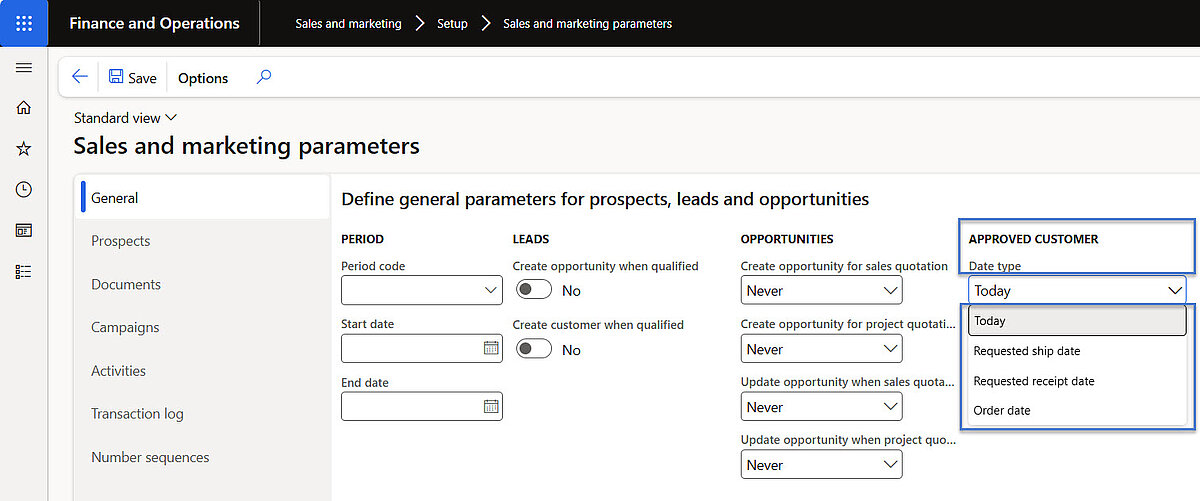
The validation process depends on the Date type field configured in the Sales and Marketing Parameters page. This field determines which date on the document —such as requested ship date or requested receipt date —is compared against the validity period of the approved customer list.
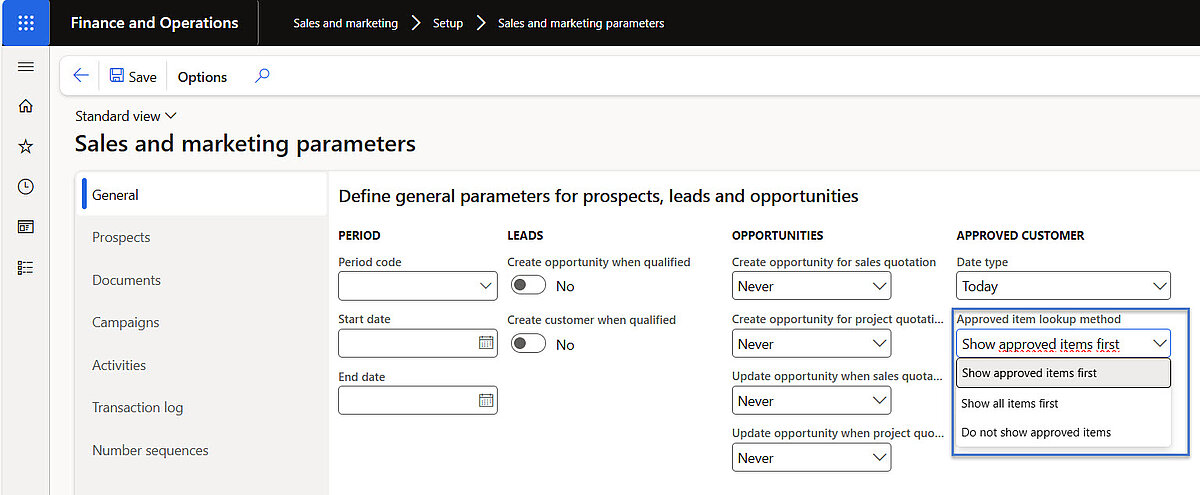
Users have the flexibility to configure how approved items are displayed in the Sales Order interface, such as prioritizing them at the top of the item list or excluding them from view based on specific settings.
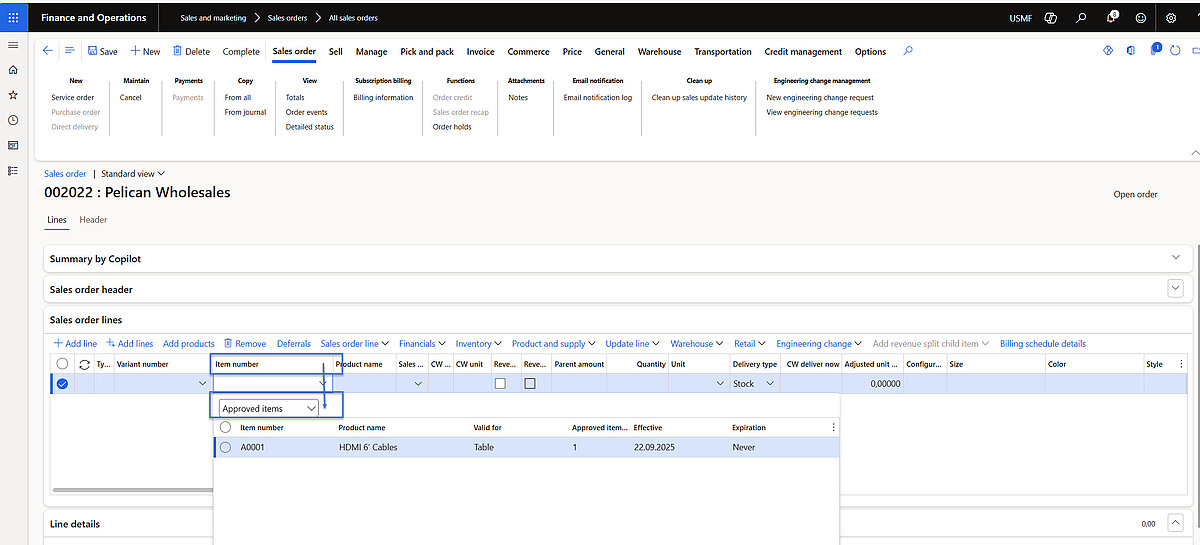
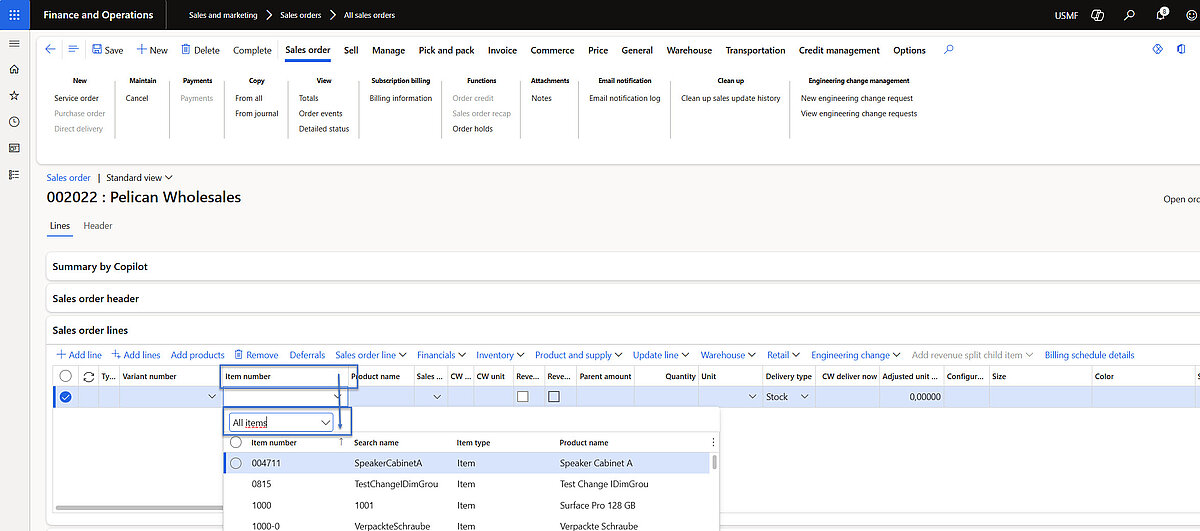
By set up “Show approved item first”, the “Approved items” option will be shown by default when adding a new line to the Sales Order.
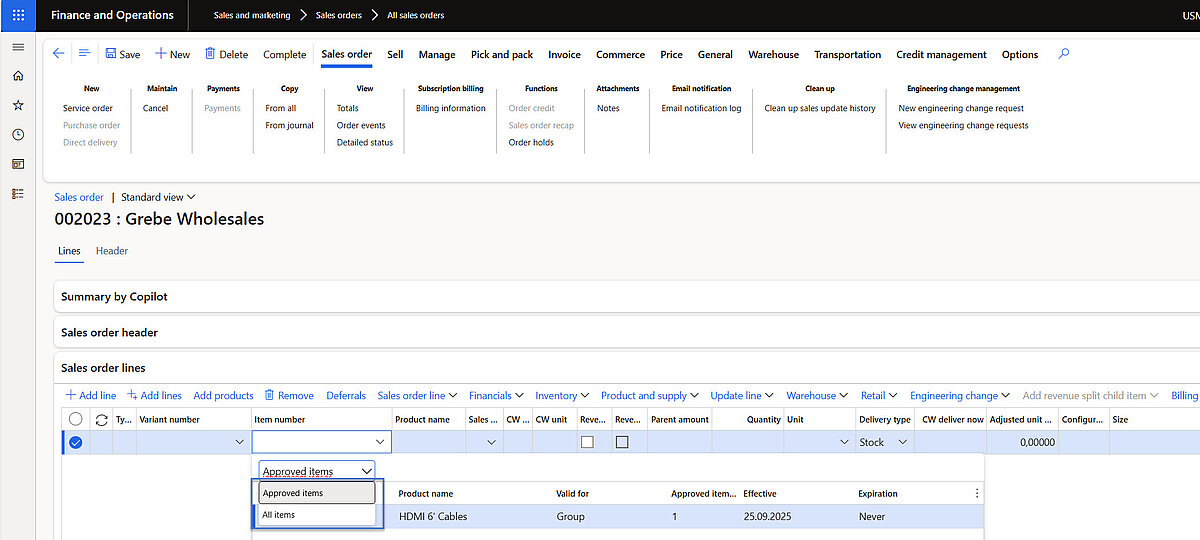
Users may also choose to display the “All items” option by selecting it from the dropdown.
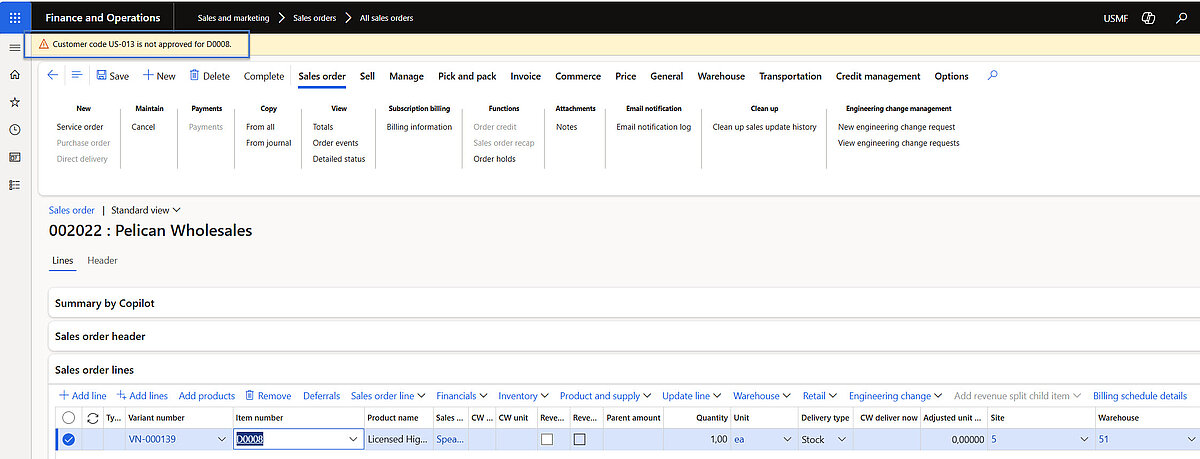
If the ACL check method “Warning only” is configured for a customer, unapproved items will prompt a yellow warning, but the Sales Order line will be saved successfully.
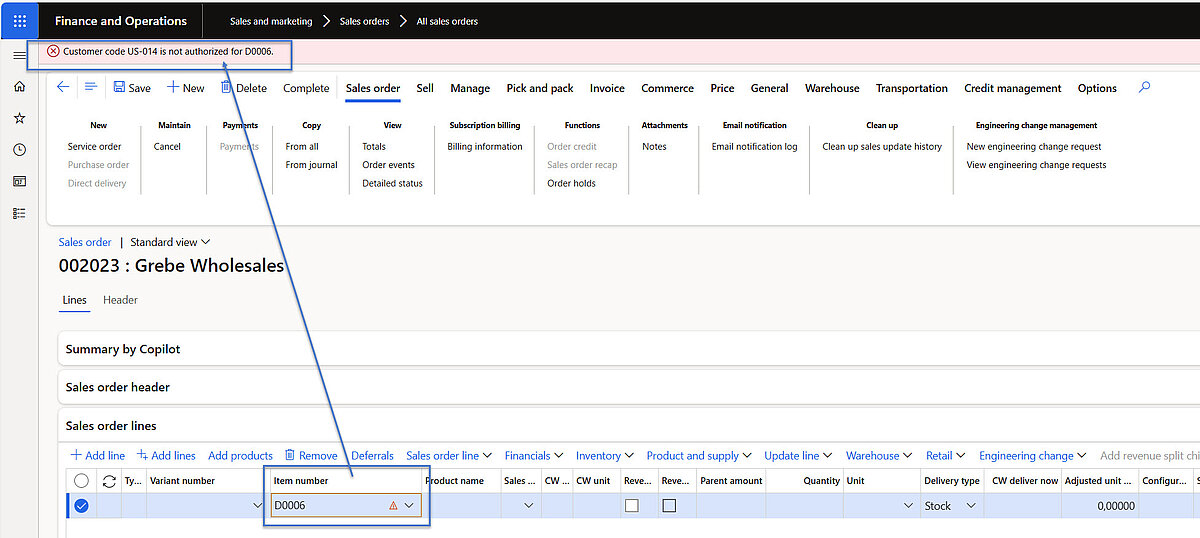
If the ACL check method “Not allowed” is set for a customer, any attempt to insert unapproved items will trigger a red warning message, and the affected line will be blocked from being saved in the Sales Order.